2.2 | Jailbreak iPhone, iPod Touch, iPad - Part 3 Skip to content

Jailbreak iPhone, iPod Touch, iPad

новости про джейлбрейк iPhone, iPod Touch и iPad

Archive

Tag: 2.2

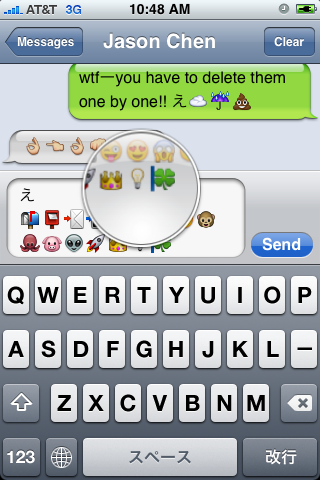
First of all these icons can be viewed on any iPhone with 2.2 firmware. But to be able to send these icons users need to perform additional actions. There are 4 ways to turn them on and 2 of them are free:

Solution N1 for $5.99:

In AppStore buy and install Touch Dial Emoji. Goto Settings -> Touch Dial -> Enable Smiley icon ON. Launch Touch Dial. Go to Settings -> General -> Keyboard -> International Keyboards -> Japanese and enable “Emoji.”

Solution N2 for $0.99:

In AppStore buy and install FrostyPlace. Play with the app for a minute to activate, click on a story, etc. Go to Settings -> General -> Keyboard -> International Keyboards -> Japanese and enable “Emoji.”

Solution N3 for Free:

Jailbreak your iPhone. Run Cydia and install Emoji application (iSpazio repository). Go to Settings -> General -> Keyboard -> International Keyboards -> Japanese and enable “Emoji.”

This application adds boolean ‘true’ key KeyboardEmojiEverywhere edits in /User/Library/Preferences/com.apple.Preferences.plist. You can do it manually if you want.

Solution N3 for Free:

Step 1. Download the vcard.vcf here.
Step 2. Import it to your address book program. If you are using Windows, you may want to do it on iPhone directly. Send the vcard.vcf file to yourself. Open in on iPhone’s Email.app, click the vcf file and import all the contacts.
Step 3. Go into “Settings” > “General” > “Keyboard” > “Japanese Keyboard”. Enable the QWERTY keyboard.
Step 4. In notes or any other program you want. Type “emojia”, “emojii” or “emojiu” to select those 🙂 icons.

I like Solution N3. It is free and simple. You do not need to play with contacts and etc. But you need to jailbreak an iPhone.

Dev Team finally made it. They created software called yellowsn0w, that unlocked iPhone 3G. Now you can use any carrier you want. I successfully unlocked my US version.It works much more stable than sim proxy method.

Please, back up everything on your iPhone before you start, just in case. Everything you do is your responsibility. I had to go through all 4 steps to make my iPhone 3G work. I used only my new sim without sim proxy.

Here are the steps:


Read the rest of this entry »

Do you want to jailbreak firmware 2.2? There are many tutorials, guides and howto’s came out recently. But I recommend you to stay away from these advices and wait for an official utility with 2.2 support QuickPwn or Pwnage tool.

DevTeam says that 2.2 update SHOULD NOT be applied using iTunes if you want the chance of a soft-unlock in the near future. Use new version of PwnageTool (not avaliable yet, but will be soon).

Some fact:

  • The 2.2 firmware for 3G contains a baseband update for the 3G iPhone
  • The 2.2 firmware for 2G (1st gen iPhones) doesn’t contain a baseband update and the baseband is still at 04.05.04
  • Pwnage technique (and therefore the Jailbreak) isn’t affected, but PwnageTool and QuickPwn do not support this release as yet, so DO NOT install 2.2 using iTunes as you will lose your jailbreak


Read the rest of this entry »

DevTeam posted a screenshot of jailbreaked and unlocked iPhone 2G with new firmware 2.2b2. This is cool that Apple still doesn’t have anything to prevent this.

Related post: Tutorial: How to perform Jailbreak, Activation and Unlock (Windows)

This is a step-by-step tutorial. If you have iPhone 3G this guide will help you jailbreak and activate the device. For iPhone 2G it will also perform the unlock.

I recommend using 2.2 firmware, because iPhone 3G unlock is avaliable now. But you can use it with old v2.1, v2.0.1 and v2.0.2.


Read the rest of this entry »

Apple released firmware version 2.2 beta 1 a bit more than a week ago. Couple more features were hiden there.

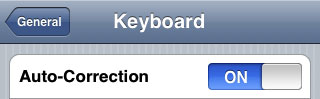
First of all Apple has addressed one common request within the iPhone’s Keyboard settings, allowing users to disable the iPhone’s auto-correction.

The other feature is for Japanese market – Japanese emoji icons. The lack of emoji support has been blamed as part of the reason for slow iPhone adoption in Japan.

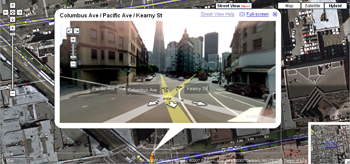
The third new feature is Street View. It allows users to view panoramic street level photographs in select cities within the Google Maps application.

Hopefully we will see more new features in this and next beta’s of 2.2 firmware.

via macrumors

Related articles:

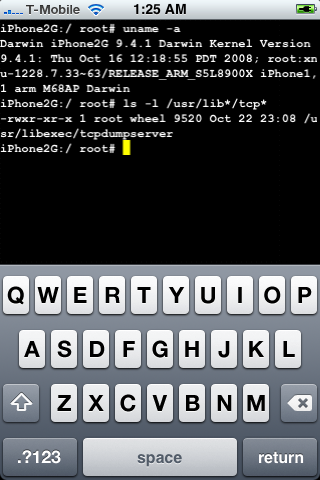
Firmware 2.2 beta 1 appeared just a day ago. It seems that DevTeam never sleeps 🙂 They published a screenshot of jailbreaked iPhone 2G with this new firmware:

It runs Terminal.app (non-apple application) running on 2.2b1 firmware. Thay say that version 2.2 is still vulnerable to pwnage and quickpwn on everything but iPod Touch 2G.

No news about software unlock for iPhone 3G or jailbreak for iPod Touch 2G.

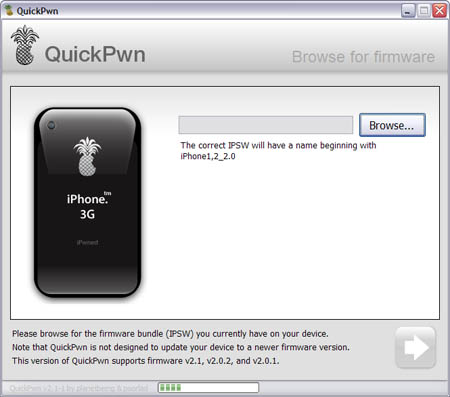
Congratulations, Windows users. The support for new firmware 2.1 is added. So here is what you can do:

  • Support for FW v2.0.1, v2.0.2, v2.1.0
  • Jailbreaking and Pwning iPhone 2G, iPhone 3G and iPod Touch
  • Adding Cydia and Installer
  • Replacing boot logos
  • Unlocking iPhone 2G

Changes from QuickPwn RC3

  • Support for firmware 2.1
  • Auto-detection of firmware version, insistence on correct firmware bundle to prevent user epic fail.
  • Use of iASign to activate to prevent bspatch epic fail.
  • Removed buggy and never really tested 2.0 support

Sorry, no jailbreak for new iPod Touch and no unlock for iPhone 3G.

Here are download links:

Firmwares v2.1: 2g firmware, 3g firmware

Related posts:

iRinger creates free ringtones for your iPhone from virtually any music or video file you own. Even YouTube videos! iRinger exports ringtones to iTunes, so there is no need to “jailbreak” your iPhone. You will be creating ringtones in seconds. It’s that simple. Here is a video tutorial:

Feature:

  • FREE
  • Three Steps: Import, Preview then Export. Done.
  • Convert virtually any audio format into an iPhone ringtone
  • Extracts audio out of video
  • Choose which section of the audio you want to hear
  • Adjust ringtone length, volume, fade in, fade out and loop gap
  • Export to iPhone ringtone format and import right into iTunes
  • Export to iPhone using SCP/SFTP and skip using iTunes
  • Use audio effects: Delay, Flanger, Boost, Reverse, etc.
  • Runs on all versions of Microsoft Windows including Windows Vista
  • Requires iPhone firmware 1.1.2 or newer, iTunes software 7.5 or newer
  • Works with the new iPhone 3G!

Download here: iRinger.exe. Developer’s site: www.iringer.net

Here is an advanced video tutorial, it shows how to use some advanced features:


Read the rest of this entry »