Tutorial | Jailbreak iPhone, iPod Touch, iPad - Part 11 Skip to content

Jailbreak iPhone, iPod Touch, iPad

новости про джейлбрейк iPhone, iPod Touch и iPad

Archive

Tag: Tutorial

These are instructions on how to jailbreak your iPhone 3GS (all bootroms) and iPhone 4 using Limera1n for Windows. Limera1n supports iOS 4.0, iOS 4.0.1, iOS 4.0.2 and iOS 4.1.

Remember: Do not update to iOS 4.1 if you need the unlock. Ultrasn0w does not support that baseband yet.

Step 1
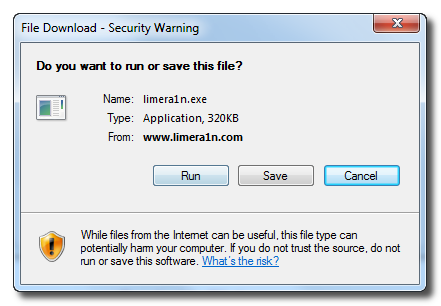
Download LimeRa1n here. If you have problems downloading go directly to www.limera1n.com and use link at the bottom of the screen.

When prompted save the download to your desktop

Read the rest of this entry »

HDR-iPhone-3-3GS

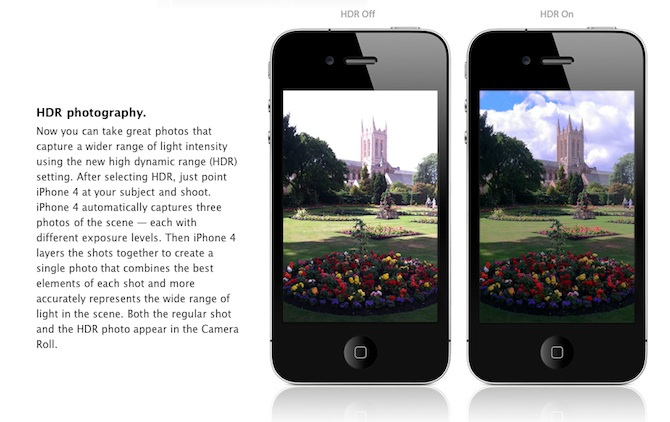
Are you looking forward to add a very popular HDR feature to your old iPhone? Do not worry! If you have a jailbroken (or ready to jailbreak) iPhone 3GS or 3G that runs on iOS 4.1, you can enable HDR photos. Here is a quick tutorial:


Read the rest of this entry »

Have you ever wanted to display something on your iPad to external big screen? Here’s a quick video tutorial how to do that:


Read the rest of this entry »

VerizoniPhone4Can not wait for the official release? Do you want to get CineXPlayer for iPad on your iPhone and iPod touch right now? For those of you who do not know, CineXPlayer is an iPad application that allows you to download Xvid AVI files using iTunes, so you can easily reproduce the format that Apple won’t. Because the developer has not invented version of the application for the iPhone, the hacker decided to do everything by himself.

It is a complete step by step tutorial on how to install it on your iPhone or iPod touch available here. You just need to jailbreak these devices, because the process involves SSH (SSH program for secure file sharing on the network) to access the iPhone, but it’s worth it if you want to get it right now!

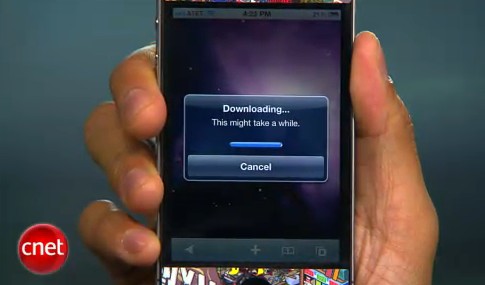
CNet specialists will show how to jailbreak using jailbreakme.com and how to turn on FaceTime over 3G (out tutorial is available here):


Read the rest of this entry »

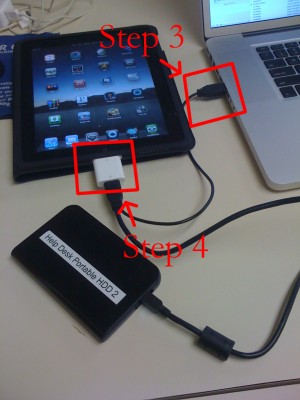
iPad USB Camera Connection Kit is much more useful as it seems. Max Sha, an experienced user, was able to access external hard drive with this kit. All you need is a jailbroken iPad, an external drive, a split-USB cable to give the drive some power and a terminal of some sort (f.e. MacBook) to mount the external storage. While it is a little unwieldy, it shows that Terabytes of external storage for iPad is possible.

Here is a complete step-by-step guide from Max Sha:


Read the rest of this entry »

spirit_jailbreak

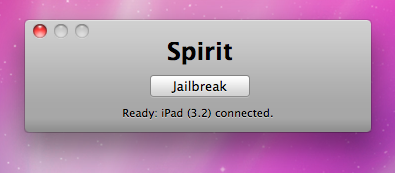
Finally the jailbreak for iPad, iPhone and iPod Touch from the Dev Team is available for download. It’s free and untethered and it’s called “Spirit”. The jailbreak supports every iDevice with firmware version 3.1.2, 3.1.3 or 3.2.


Read the rest of this entry »

apple_worm

A second iPhone worm virus has been found by security company F-Secure. It is specifically targeting people in the Netherlands who are using their iPhones for internet banking with Dutch online bank ING.

It redirects the bank’s customers to a site with a log-in screen (phishing). The worm attacks “jailbroken” phones – a modification which enables the user to run non-Apple approved software on their handset. Only handsets with installed SSH (secure shell) are at risk. SSH is a file-transfer program that enables users to remotely connect to their phones. It comes with a default password, ‘alpine’ which should be changed.

Here is a tutorial how to change the default SSH password and minimize the risk.

MobileTerminalicon

This is quite simple. If you did a jailbreak on your iPhone you need to change the default password. Why? Because hackers can access your phone, read your mail, sms, download other data. The second reason is because there are already several viruses (worms) that use these default passwords.

Here’s a quick step-by-step tutorial.

  1. If you don’t have MobileTerminal application installed: run Cydia, search for MobileTerminal and install.
  2. Run MobileTerminal.
  3. Type passwd and press return.
  4. Enter the default user password alpine and press return.
  5. Enter a new password and press return.
  6. Enter a new password again and press return.
  7. Congratulations, you changed it for default mobile user. Let’s do the same for root user.
  8. Login as root user: type su root and press return.
  9. Type passwd and press return.
  10. Enter the default root user password alpine and press return.
  11. Enter a new password and press return.
  12. Enter a new password again and press return.
  13. That’s it!

The passwords are now changed, and your jailbroken iPhone or iPod Touch is now a bit more secure than it was before and less vulnerable to the worm detected recently.

blackra1n

Geohot has released his BlackSn0w utility. BlackSn0w is an unlock for the iPhone 3G and iPhone 3GS. It supports the latest firmware 3.1 and 3.1.2 with baseband 05.11.07 and enables official tethering. Available for both Windows and Mac.

Here is a quick tutorial:
If you havn’t done the jailbreak: go to blackra1n.com, download blackra1n, run it, follow the instructions (it is really simple) to perform the jailbreak. Run balckra1n app on iPhone and install BlackSnow.
If your device is already jailbroken – run Cydia, add repository blackra1n.com and install blacksn0w. That’s it!

The latest version of blackra1n is RC3. It now has hacktivation support, 15 second speed improvement, Tiger+PPC support.

PS: If you just bought a new iPhone 3GS or have one that was made recently (approximately after 40th week after iPhone 3GS release): your device has a new BootROM. Unfortunately it is impossible to run regular jailbreak with this new BootROM. There is a sloution – tethered jailbreak. Everything including unlock will work fine. However every time you restart your iPhone, you need to plug it to a computer with blackra1n installed.