USB | Jailbreak iPhone, iPod Touch, iPad Skip to content

Jailbreak iPhone, iPod Touch, iPad

новости про джейлбрейк iPhone, iPod Touch и iPad

Archive

Tag: USB

This is step-by-step instructions on how to perform untethered jailbreak of iOS 8.0 – iOS 8.1 firmwares using Pangu8 for Windows.

This tutorial works for:

  • iPhone 4S, iPhone 5, iPhone 5C, iPhone 5S, iPhone 6, iPhone 6 Plus
  • iPod Touch 5G
  • iPad 2, iPad 3, iPad 4, iPad Air, iPad Air 2, iPad Mini, iPad Mini 2, iPad Mini 3

Supported firmwares: iOS 8.0 – iOS 8.1.

Read the rest of this entry »

This is step-by-step instructions on how to perform untethered jailbreak of iOS 7.1 – iOS 7.1.2 firmwares using Pangu for Windows.

This tutorial works for:

  • iPhone 4, iPhone 4S, iPhone 5, iPhone 5C, iPhone 5S
  • iPod Touch 5G
  • iPad 2, iPad 3, iPad 4, iPad Air, iPad Mini, iPad Mini 2

Supported firmwares:

  • iOS 7.1
  • iOS 7.1.1
  • iOS 7.1.2


Read More »

absinthe20

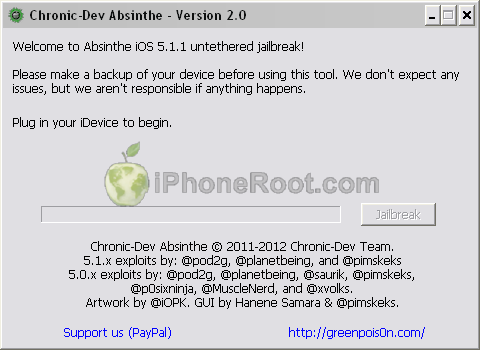
Here are recommendations from Chronic Dev Team:

  1. Make a backup of your device in iTunes by right clicking on your device name under the ‘Devices’ menu and click ‘Back Up’.
  2. Once your backup is complete return to your device and go to Settings – General – Reset – Erase all Content and Settings. This will make the jailbreak process much faster.
  3. Open Absinthe and be sure you are still connected via USB cable to your computer.
  4. Click ‘Jailbreak’ and wait…. just be patient and do not disconnect your device.
  5. Once jailbroken return to iTunes and restore your backup from earlier. Right click on your device name under the ‘Devices’ menu in the left panel of iTunes and click ‘Restore from Back Up…’ then select the latest backup you created before. (restoring this backup will return all the content previously on your device ie, apps, photos, etc.)

Step-by-step tutorials are available here.

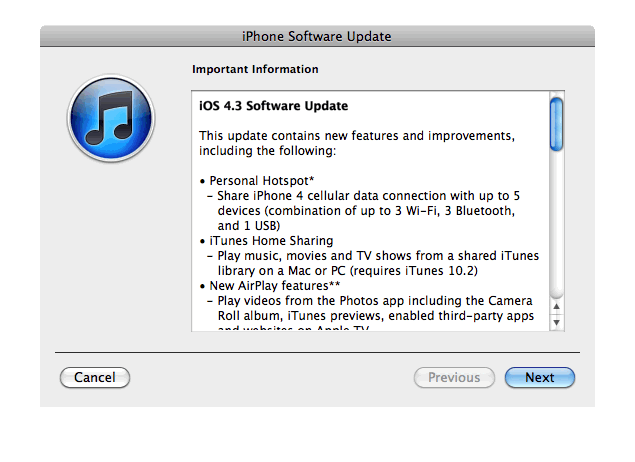
Apple just released new iOS 4.3 firmware. Jailbreakers and unlockers should wait for new tools. Everybody else will benefit. iOS 4.3 has Safari speed improvements, AirPlay features, hotspot, Home sharing, a new option for customizing the iPad’s side switch to serve as a mute toggle or screen orientation lock and much more:

This update contains new features and improvements, including the following:

* Personal Hotspot
– Share iPhone 4 cellular data with up to 5 devices (combination of up to 3 Wi-Fi, 3 Bluetooth, and 1 USB)

* iTunes Home Sharing
– Play music, movies, and TV shows from a shared iTunes library on a Mac or PC (requires iTunes 10.2)

* New AirPlay features
– Play videos from the Photos app including the Camera Roll album, iTunes previews, enabled third-party apps and websites on Apple TV
– Play slideshows from Photos on Apple TV using transitions available on Apple TV

* Faster Safari performance with Apple Nitro JavaScript engine

* HD video out using the Apple Digital AV Adapter
– View 720p HD videos from Videos app, iPod app, Photos, YouTube, Safari, Keynote, and enabled third-party apps on an HDMI display

* Ping features
– Push notifications for comments and follow requests
– Post and Like songs directly from the Now Playing screen
– Parental controls

* New Settings
– Messages setting for number of times to repeat an alert
– iPad side switch setting to lock screen rotation or mute audio notifications and sound effects

* Single tap conference call dialing with a pause to send a passcode

* Bug fixes

Products compatible with the software update:

  • iPhone 4 (GSM model)
  • iPhone 3GS
  • iPad
  • iPod touch (4th generation)
  • iPod touch (3rd generation)
  • Apple TV 2G

iPhone 3G, iPod Touch 2G and iPhone 4 Verizon do not have iOS 4.3 update.

Here are the direct links to download iOS 4.3:

device version release date
AppleTV(2G) (AppleTV2,1) 4.3 (8F191m) 03/09/2011 13:07:02
iPad (iPad1,1) 4.3 (8F190) 03/09/2011 13:07:02
iPad2,1 (iPad2,1) 4.3 (8F191) 03/09/2011 13:07:02
iPad2,2 (iPad2,2) 4.3 (8F191) 03/09/2011 13:07:02
iPad2,3 (iPad2,3) 4.3 (8F191) 03/09/2011 13:07:02
iPhone3GS (iPhone2,1) 4.3 (8F190) 03/09/2011 13:07:02
iPhone4 (iPhone3,1) 4.3 (8F190) 03/09/2011 13:07:02
iPodTouch(3G) (iPod3,1) 4.3 (8F190) 03/09/2011 13:07:02
iPodTouch(4G) (iPod4,1) 4.3 (8F190) 03/09/2011 13:07:02

gp_web_win

These are step-by-step instructions on how to jailbreak iOS 4.2.1 on iPhone 3GS, iPhone 4, iPad, iPod Touch 2G, iPod Touch 3G, iPod Touch 4G using Greenpois0n for Windows. Tutorial for Mac OS X users is available here. All the steps are the same for all devices, we will cover iPhone.

Greenpois0n has been updated to support the iOS 4.1 and iOS 4.2.1 firmware. Use Limera1n if you want to jailbreak iOS 4.0, iOS 4.0.1, iOS 4.0.2.

Remember: Greenpois0n recommends a clean restore before continuing.

Unlockers: do not update to iOS 4.1 or iOS 4.2.1 if you need the unlock. Ultrasn0w does not support that baseband yet. The only exception is the iPhone 4. Experienced users can also try update to iOS 4.2.1 without upgrading your baseband by using TinyUmbrella. Start TSS Server->Start iTunes->Plug in your iPhone->Restore 4.2.1->Error 1013->Put phone into DFU Mode->Launch Greenpois0n.

We are not authors of this app. We do not promise that everything will go well, use this tutorial at your own risk.

Step One
Open your web browser and download the latest Windows version of GreenPois0n from here.


Read the rest of this entry »

gp_web

These are step-by-step instructions on how to jailbreak iOS 4.2.1 on iPhone 3GS, iPhone 4, iPad, iPod Touch 2G, iPod Touch 3G, iPod Touch 4G using Greenpois0n for Mac OS X. Tutorial for Windows users is available here. All the steps are the same for all devices.

Greenpois0n has been updated to support the iOS 4.1 and iOS 4.2.1 firmware. Use Limera1n if you want to jailbreak iOS 4.0, iOS 4.0.1, iOS 4.0.2.

Remember: Greenpois0n recommends a clean restore before continuing.

Unlockers: do not update to iOS 4.1 or iOS 4.2.1 if you need the unlock. Ultrasn0w does not support that baseband yet. The only exception is the iPhone 4. You can unlock iPhone 4 with iOS 4.1 using ultrasn0w. Experienced users can also try update to iOS 4.2.1 without upgrading your baseband by using TinyUmbrella. Start TSS Server->Start iTunes->Plug in your iPhone->Restore 4.2.1->Error 1013->Put phone into DFU Mode->Launch Greenpois0n.

We are not authors of this app. We do not promise that everything will go well, use this tutorial at your own risk.

Read the rest >>>>

gp_web

These are step-by-step instructions on how to jailbreak iOS 4.2.1 on iPhone 3GS, iPhone 4, iPad, iPod Touch 2G, iPod Touch 3G, iPod Touch 4G using Greenpois0n for Mac OS X. Tutorial for Windows users is available here. All the steps are the same for all devices, we will cover iPhone.

Greenpois0n has been updated to support the iOS 4.1 and iOS 4.2.1 firmware. Use Limera1n if you want to jailbreak iOS 4.0, iOS 4.0.1, iOS 4.0.2.

Remember: Greenpois0n recommends a clean restore before continuing.

Unlockers: do not update to iOS 4.1 or iOS 4.2.1 if you need the unlock. Ultrasn0w does not support that baseband yet. The only exception is the iPhone 4. Experienced users can also try update to iOS 4.2.1 without upgrading your baseband by using TinyUmbrella. Start TSS Server->Start iTunes->Plug in your iPhone->Restore 4.2.1->Error 1013->Put phone into DFU Mode->Launch Greenpois0n.

We are not authors of this app. We do not promise that everything will go well, use this tutorial at your own risk.

Step One
Open your web browser and download the latest Mac version of GreenPois0n from here.


Read the rest of this entry »

betatest

The iPhone Dev team has just released the second beta of their untethered RedSn0w jailbreak (the first beta has been released few hours ago and has more bugs).

New jailbreak is called “Jailbreak Monte”, as it uses new “backup method”. The iPhone Dev Team warns that their beta-version is not a general release and you should back up all your media before using it. There are also other limitations and bugs:


Read the rest of this entry »

redsn0w-0-9-6-b1

RedSn0w 0.9.6 b1 for Mac OS X was released a while ago. Today DevTeam created a version for Windows users. RedSn0w 0.9.6 b1 can jailbreak iOS 4.1 and iOS 4.1 running on iPhone 3G or iPod touch 2G.

You can download it here.

Redsn0w is easy to use:

  1. Download firmware here.
  2. Launch redsn0w 0.9.6 b1
  3. Select your stock 4.1 or 4.0 ipsw (you’ve already used this to update your device to 4.1 or 4.0)
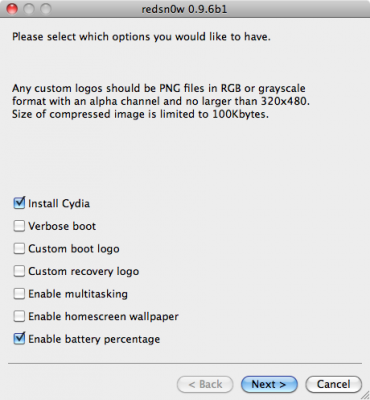
  4. Select “Install Cydia” and any of the other options shown above, then click “Next”. Use DFU mode to install the jailbreak.

This is still beta, so there might be some problems:

Any Windows users seeing “Waiting for reboot” for too long (more than 20 seconds or so), please try “shaking” the JB process by unplugging then replugging your USB cable (while letting redsn0w continue to run). Also, try using a USB port “closer” to your computer (as opposed to on your monitor or behind another hub).

As usual DevTeam reminds us:

IF YOU USE THE ULTRASN0W UNLOCK, PLEASE WAIT FOR PWNAGETOOL TO SUPPORT 4.1. DO NOT USE REDSN0W

That’s because to use redsn0w at 4.1, you need to already have updated to official 4.1 from Apple. If you do that, you lose the ultrasn0w unlock (possibly forever).

1

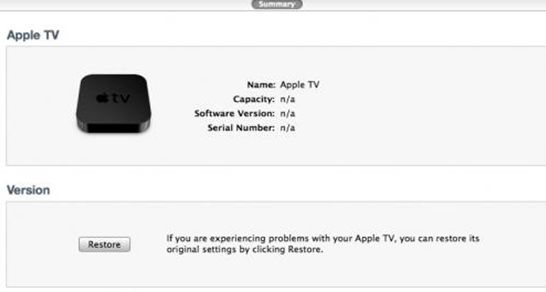
Twitter user with nickname StealthBravo recently confirmed that the new Apple TV can be restored in iTunes as well as any iOS device, easing the way for jailbreakers to bring new functionality to the set-top box. This means that the hackers soon be able to offer us tools, as they currently do for other iOS devices, to save SHSH blobs, jailbreak the Apple TV, and install 3rd party software.

Moreover, Apple TV offers a Micro-USB port for connectivity, but the port also offers a means for users to physically connect the device to computers to employ the techniques required for jailbreak of operating system.

  • Page 1 of 2
  • 1
  • 2
  • >