Password | Jailbreak iPhone, iPod Touch, iPad Skip to content

Jailbreak iPhone, iPod Touch, iPad

новости про джейлбрейк iPhone, iPod Touch и iPad

Archive

Tag: password

This is step-by-step instructions on how to perform untethered jailbreak of iOS 8.0 – iOS 8.1 firmwares using Pangu8 for Windows.

This tutorial works for:

  • iPhone 4S, iPhone 5, iPhone 5C, iPhone 5S, iPhone 6, iPhone 6 Plus
  • iPod Touch 5G
  • iPad 2, iPad 3, iPad 4, iPad Air, iPad Air 2, iPad Mini, iPad Mini 2, iPad Mini 3

Supported firmwares: iOS 8.0 – iOS 8.1.

Read the rest of this entry »

The team behind the Pangu untethered jailbreak of iOS 7.1-7.1.2 has released a Pangu8 untethered jailbreak for iOS 8 – 8.1.

Currently a jailbreak utility is only available for Windows and at this time Cydia and Mobile Substrate are not working.

Here’s the translated details via reddit user zsm1703:


Read the rest of this entry »

pwnagetool413-3gs-3

UPDate: save your iOS 4.2.1 SHSH blobs now!

UPDate 2: Attention! We’ve received info, that Apple stopped signing iOS 4.2 for devices for which iOS 4.3 is available. This means you will not be able to restore to 4.2.1 without saved SHSH keys.

Using this tutorial you will be able to jailbreak iOS 4.2.1 running on iPhone 3G, iPhone 3GS, iPhone 4, iPod Touch 3G, iPod Touch 4G and iPad. Pwnagetool will also preserve baseband version if you need carrier unlock. If you have updated the baseband to version 06.15, you can use this tutorial. This tutorial uses PwnageTool 4.2 for Mac OS X.

We are not developers of jailbreak utilities, so we cannot assure that everything will work just fine. However we tried this tutorial on several devices and succeeded.

We will use iPhone 4 in our jailbreak tutorial. The process is the same for all devices.

Step One
Make a folder called “Pwnage” on the desktop. Download a couple of things:

Read the rest >>>

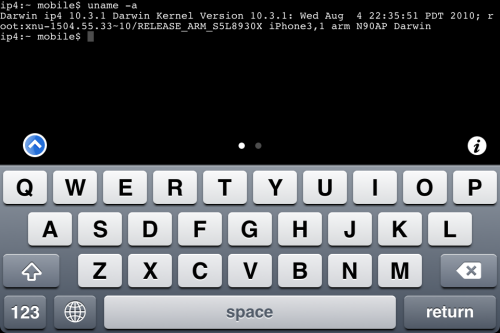
MobileTerminal-iPhone4-04

MobileTerminal is a terminal emulator application for the iPad and iPhone. The version of MobileTerminal that is available in Cydia doesn’t work with iPhone iOS 4.x. However there are beta versions that do work, but aren’t on Cydia because they are still in beta stages. This tutorial will show you step-by-step how to install MobileTerminal on iPhone with iOS 4.x (tutorial for iPad is here). If you have old version of MobileTerminal installed – uninstall it in Cydia (Search – MobileTerminal – Remove).

First of all you need to jailbreak your iPhone. If you have not done it already here is an easy tutorial: how to jailbreak iOS 4.0-4.1 on iPhone using Limera1n. After you successfully jailbreaked iPhone:

  1. Run Cydia by tapping on Cydia icon
  2. cydia_icon

  3. The Cydia will start:

Read the rest of this entry

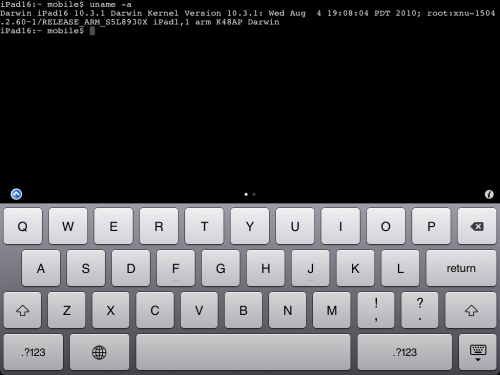
MobileTerminal-iPad-05

MobileTerminal is a terminal emulator application for the iPad and iPhone. The version of MobileTerminal that is available in Cydia doesn’t work with iPad iOS 3.2.2 and iPhone iOS 4.x. However there are beta versions that do work, but aren’t on Cydia because they are still in beta stages. This tutorial will show you step-by-step how to install MobileTerminal on iPad (tutorial for iPhone is here). If you have old version of MobileTerminal installed – uninstall it in Cydia (Search – MobileTerminal – Remove).

First of all you need to jailbreak your iPad. Here is an easy tutorial: how to jailbreak iPad with iOS 3.2.2 using Limera1n. After you successfully jailbreaked iPad:

  1. Run Cydia by tapping on Cydia icon
  2. cydia_icon

  3. The Cydia will start:

Read the rest of this entry

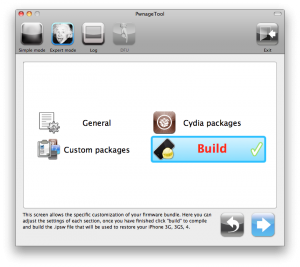
These are instructions on how to jailbreak your iPhone using PwnageTool 4.1 for Mac OS X. If you need unlock and you have not updated to iOS 4 you will be able to preserve baseband and unlock iPhone using ultrasn0w.

This guide will work for iPhone 4, iPhone 3GS, iPhone 3G, iPod Touch 3G, iPod Touch 4G, iPad and AppleTV. Just use the right firmware and select the right device (step four).

Step One
Make a folder called “Pwnage” on the desktop. Now you need to download there PwnageTool 4.1 from here and iOS 4.1 firmware from here.

When downloading the IPSW file, it is best to download it with Firefox since Safari often auto extracts it!

pwnagetool-41-1

Step Two
Double click to mount PwnageTool then drag the PwnageTool icon into the Pwnage folder.

Read the rest of this entry

itunes

iTunes continues to serve iOS updates even if your Apple’s device was jailbroken. And if these updates are downloaded and installed occasionally, your device may be returned to  a non-jailbroken state.  Here the script, which prevents iTunes from automatically downloading updates:


Read the rest of this entry »

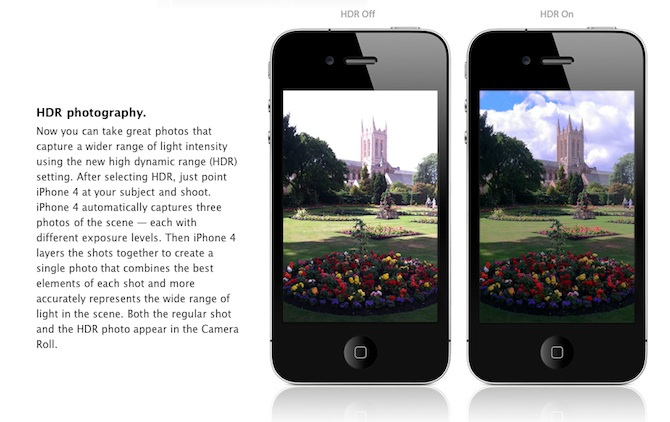
HDR-iPhone-3-3GS

Are you looking forward to add a very popular HDR feature to your old iPhone? Do not worry! If you have a jailbroken (or ready to jailbreak) iPhone 3GS or 3G that runs on iOS 4.1, you can enable HDR photos. Here is a quick tutorial:


Read the rest of this entry »

FaceTime feature gives users the possibility to make  voice calls. Apple restricted this feature to Wi-Fi only. Today it became possible to use it over 3G!

Setup Instructions:

  1. Jailbreak your iPhone 4 via www.jailbreakme.com.
  2. Download and upgrade to the latest Cydia package.
  3. Open Cydia, Go to Manage then Sources.
  4. Click Sources, Edit then add: http://apt.modmyi.com
  5. Search for “My3G” — download, and install it. It costs $2.79. My3G makes Apps believe that they are on WiFi instead of 3G.
  6. Go through the Rock setup process with a username and password. Open My3G and leave all settings on the default.
  7. FaceTime should now work over 3G! — Make sure to “Forget” the WiFi network you are on (via iOS settings) if you want to test it.

We haven’t seen any difference between the 3G FaceTime call and a WiFi FaceTime call. The quality is very good.

Here’s a video demo:


Read the rest of this entry »

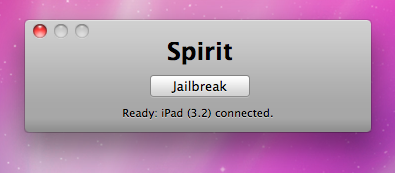
spirit_jailbreak

The first release of Spirit had a bug that accidently could delete all of your photos from the device that was jailbroken. If you have a backup which you made before jailbreaking your iPhone/iPod Touch/iPad, here is a quick guide how to recover deleted photos.

Read the rest of this entry »

  • Page 1 of 2
  • 1
  • 2
  • >