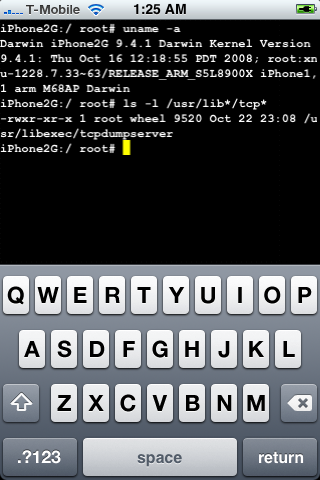
DevTeam posted a screenshot of jailbreaked and unlocked iPhone 2G with new firmware 2.2b2. This is cool that Apple still doesn’t have anything to prevent this.
Related post: Tutorial: How to perform Jailbreak, Activation and Unlock (Windows)
DevTeam posted a screenshot of jailbreaked and unlocked iPhone 2G with new firmware 2.2b2. This is cool that Apple still doesn’t have anything to prevent this.
Related post: Tutorial: How to perform Jailbreak, Activation and Unlock (Windows)
We had a post about SBSettings – the future of BossPrefs (link). Couple days ago this application became avaliable in Cydia.
![sbsettings 090 1 200x300 SBSettings [Cydia]](http://jailbreak-iphone.ru/wp-content/uploads/2008/10/sbsettings_090-1.png "sbsettings_090-1")
![sbsettings 090 2 200x300 SBSettings [Cydia]](http://jailbreak-iphone.ru/wp-content/uploads/2008/10/sbsettings_090-2.png "sbsettings_090-2")
SBSettings doenst have an icon so after you install to access it you must slide across the statusbar (aka the top bar that displays service, time, battery, etc.)
Current version is 0.92. But the application is updated almost every day.
This application is avaliable for jailbreaked iPhones via Cydia installer.
The developer, Kevin Rose, says this application will be avaliable officially via AppStore. No jailbreaking and hacking. The only concern.. will Apple approve it? I hope so. Watch the video:
PS: It will be free 
Related posts:
This application is developed by Jay Freeman, the creator of the Cydia. Veency is a free app that allows iPhone owners to remotely control their iPhone from PC or Mac desktop via a VNC client.
Here are some of the features:
Of course you cannot do two finger gestures with this app. All other actions can be done with the click of your mouse. The only area in which Veency fails tragically at is when opening any video recording application on the iPhone.
This application is avaliable for jailbreaked iPhones via Cydia installer.
Be sure to restart your iPhone after installing Veency and connect to the server using a Wi-Fi connection. We recommend using or to connect your Windows desktop. If you’re using a Mac, we recommend .
Here is a video demonstration:
via readwriteweb
Many users of jailbreaked iPhones use application called BossPrefs. The developer of this app is creating a new one. The new application will be called SBSettings.
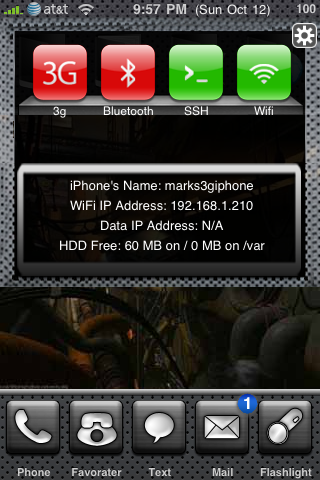
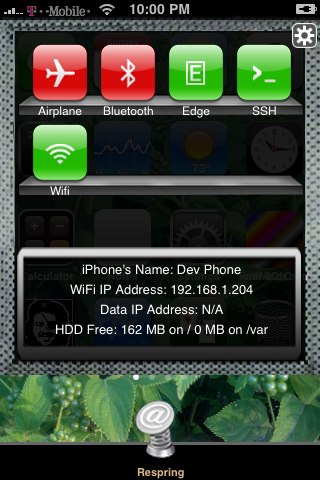
The toggles drop down when you swipe along the status bar. It is very fast and can be used while in any app without exiting the app. Suppose you are in Safari but realize your 3g is not yet enabled. Just swipe the statusbar and toggle 3g, than resume in Safari where you left off. The advantage is there is no need to exit Safari and load settings or bossprefs.
The look and feel of this new app will be something like this:
via thebigboss
This is a step-by-step tutorial. If you have iPhone 3G this guide will help you jailbreak and activate the device. For iPhone 2G it will also perform the unlock.
I recommend using 2.2 firmware, because iPhone 3G unlock is avaliable now. But you can use it with old v2.1, v2.0.1 and v2.0.2.
1. If you’re using old firmware and want to upgrade, please, do it via iTunes.
2. Go ahead and download QuickPwn 2.2 (download links).
3. Download firmware (download links).
4. Close iTunes (if opened) and start QuickPwn. You will see the following:
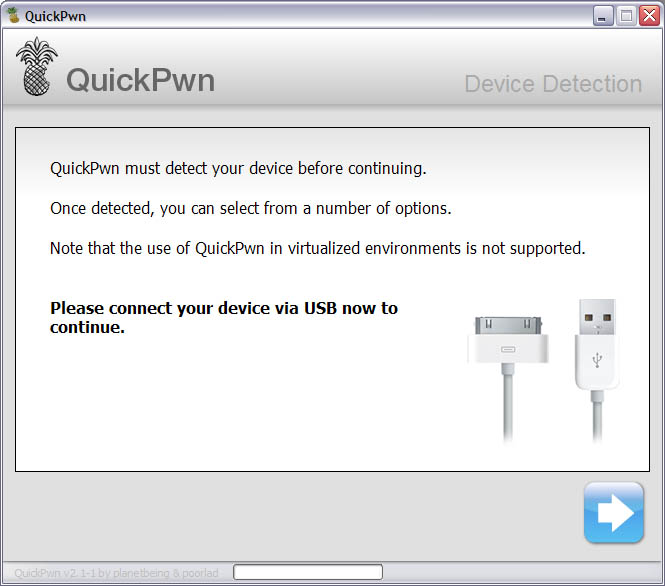
5. Connect you iPhone or iPhone 3G and push next button.
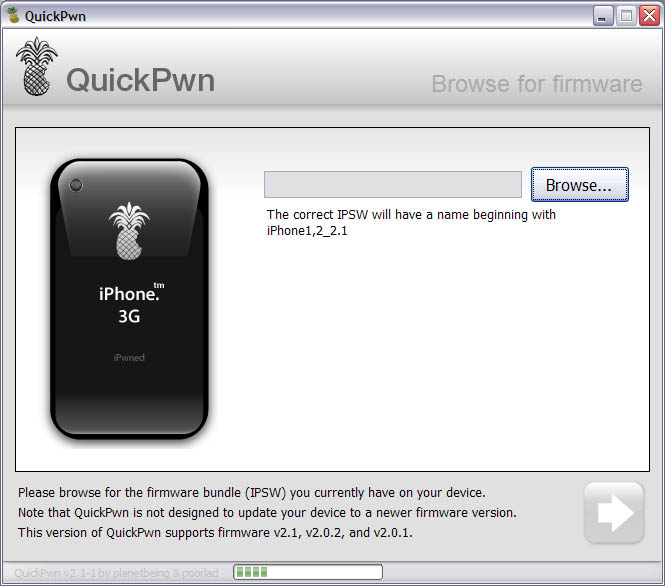
6. Your deveice is detected. Click browse to select firmware image.
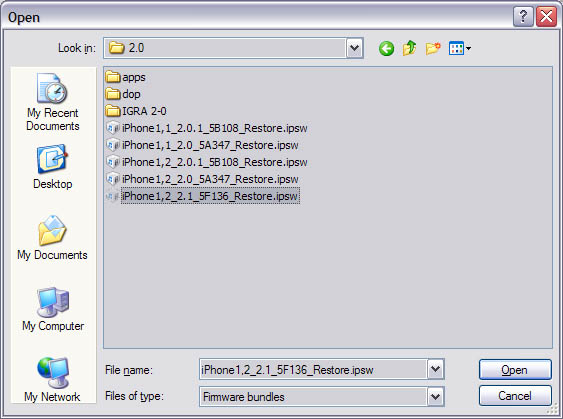
7. Select the image that you downloaded in step 3. Make sure this is the same version that you currently have on your iPhone. If you want to upgrade go to step 1.
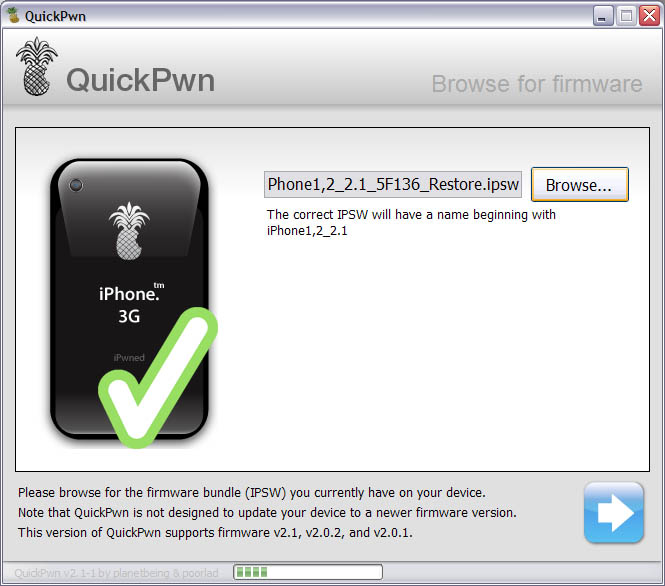
8. The application will verify that you choose the right version of firmware image. Click next.
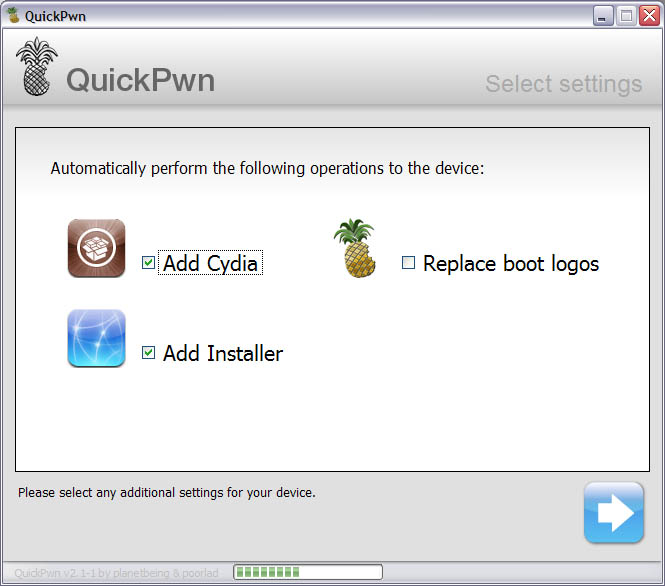
9. You will be frequently using Cyda, so make sure to check it. Installer is in beta, but it will be updated in the future, so check this one too. Click next.
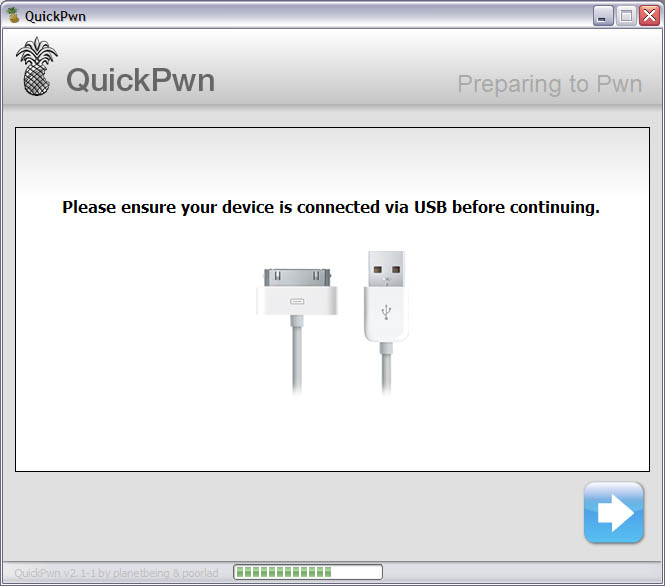
10. Check if your device is connected and hit next.
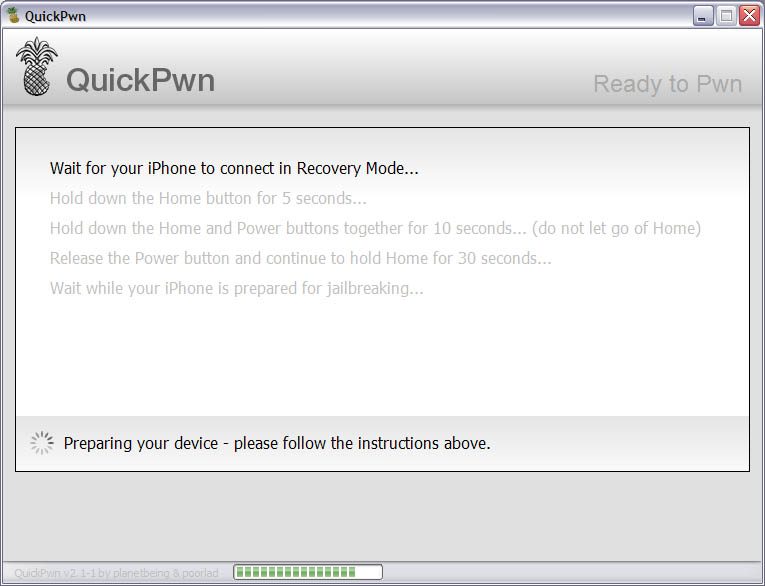
11. This is probably the hardest part. You will need to press Home and Power buttons on your iPhone in the special order. So make sure you read instructions carefully and follow them. If not, not big deal, you’ll be able to start from step 4.
There are 3 steps here: hold down Home button for 5 sec, than hold Home and Power button for 10 sec, than hold Home butting for 30 sec.
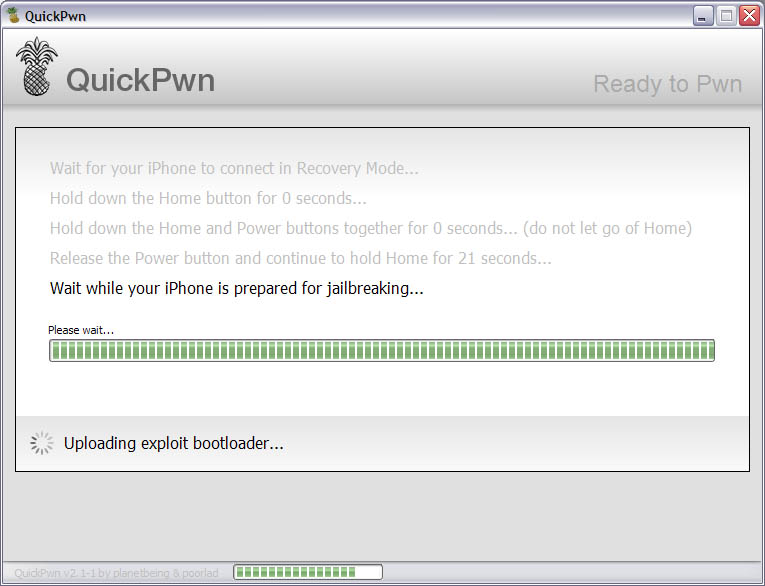
12. Than you’ll have to wait whilce QuickPwn will do the work.
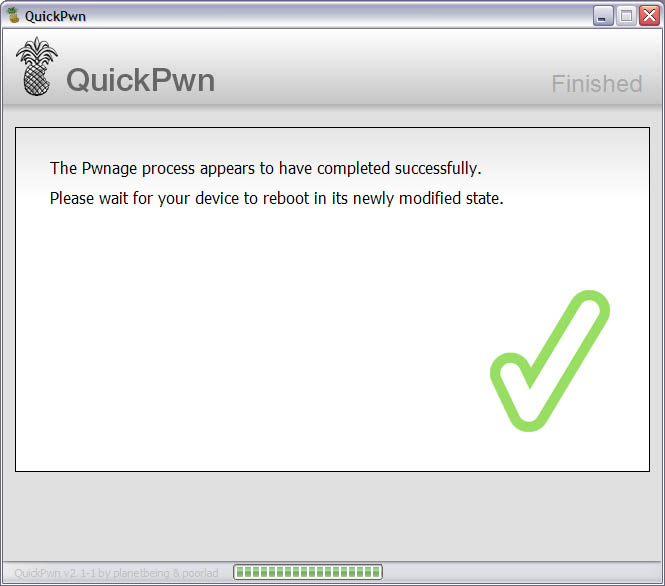
13. Congratulations! You did it. Now you can run Cydia Installer and install usefull and free applications.

PdaNet updated to version 1.33. This tool allows you to connect any desktop or notebook to internet through iPhone 3G. Here is a changelog:
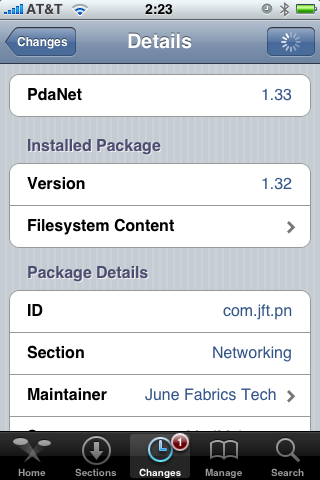
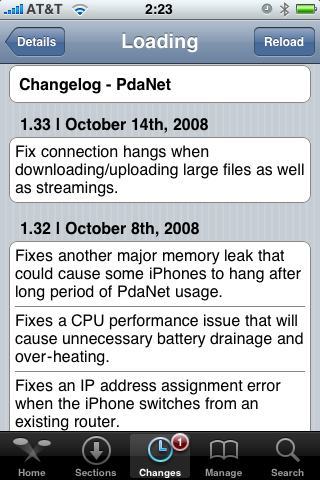
This application is avaliable via Cydia Installer for jailbreaked iPhones.
Apple released firmware version 2.2 beta 1 a bit more than a week ago. Couple more features were hiden there.
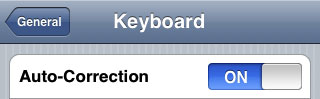
First of all Apple has addressed one common request within the iPhone’s Keyboard settings, allowing users to disable the iPhone’s auto-correction.
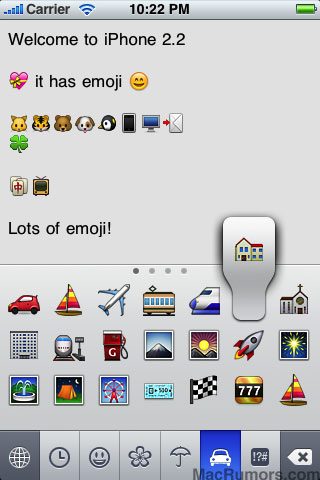
The other feature is for Japanese market – Japanese emoji icons. The lack of emoji support has been blamed as part of the reason for slow iPhone adoption in Japan.
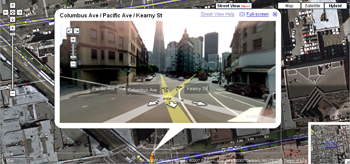
The third new feature is Street View. It allows users to view panoramic street level photographs in select cities within the Google Maps application.
Hopefully we will see more new features in this and next beta’s of 2.2 firmware.
via macrumors
Related articles: