Archive
Category: Software
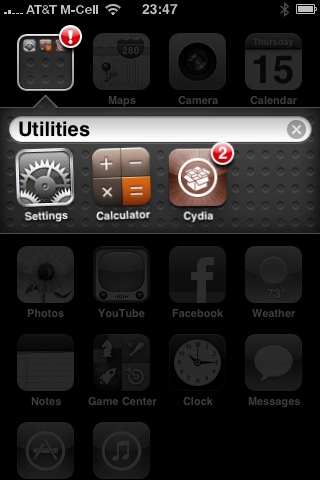
MuscleNerd just released redsn0w 0.9.5 beta – the first public jailbreak of iPhone OS 4. This utility is only for developers of jailbroken apps, so they can update apps for firmware 4.0. The jailbreak only supports the iPhone 3G and runs on MAC OS X. There is no carrier unlock right now.
You can download RedSn0w 0.9.5 and get more info .
A few hours ago iH8sn0w posted a tweet that he is able to run jailbreak on the new firmware 4.0 beta 1. DarkMalloc, another developer who worked on the project, has just released new video that shows firmware 4.0 jailbreak on iPhone 3G:
The interesting thing, besides the presence of Cydia and MobileTerminal, is the possibility to have multiple applications open at once. That means that multitasking on iPhone 3G can be enabled. Officially Apple doesn’t want to activate this functionality on iPhone 3G, just iPhone 3GS and later devices.
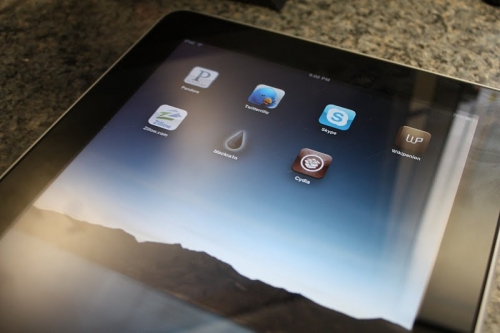
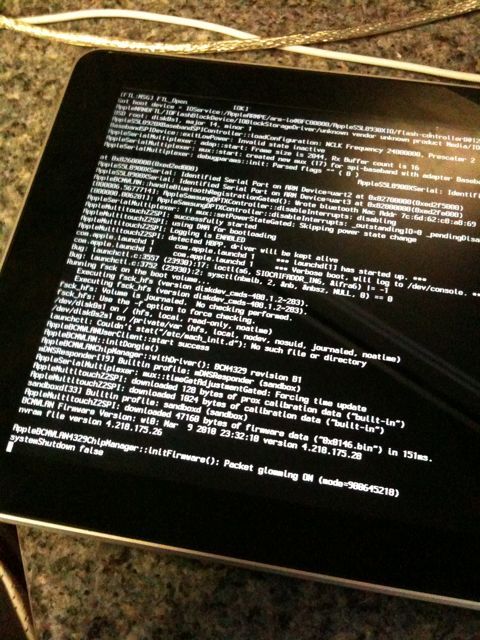
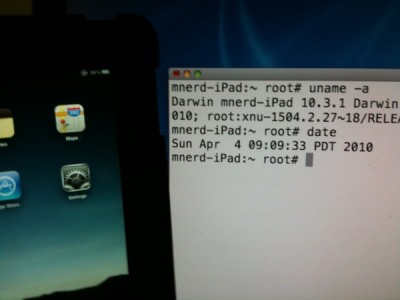
That didn’t take long. In less than 24 hours hackers managed to jailbreak Apple iPad, to get a root access to a file system. The first video of a jailbreaked iPad was recently published by Musclenerd, famous hacker from DevTeam. This was a team work of Musclenerd, chronicdevteam, comex and chpwn.
Watch the video:
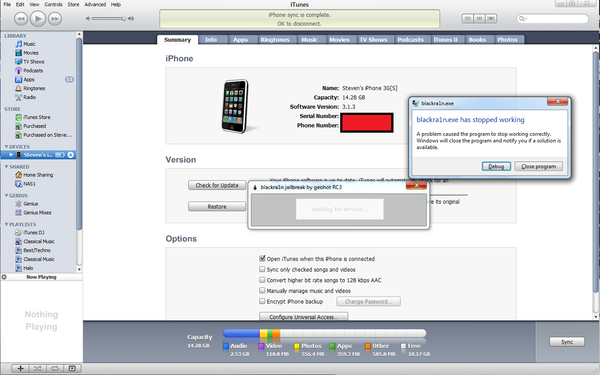
Yesterday iTunes update was found to have issues with those of iPod Touches and iPhones that were tethered jailbroken with blackRa1n. If you have one of these, you will be unable to rejailbreak your device after rebooting it with blackra1n. The problem is being experienced only by Windows users. iH8Sn0w has an explanation:
“Blackra1n hooks to the dll that has different offsets of what it is actually looking for”.
To solve the problem iH8Sn0w released a blackra1n fix for a new version of iTunes. It’s named BlackBreeze and it supports 32bit + 64bit Windows versions and can be downloaded . Please note that this fix is not an official update from Geohot. You can also try to replace new iTunes dll-files with the old ones or install iTunes 9.0.3. The latter is available (don’t forget to uninstall the current version and reboot before the installing of another one).
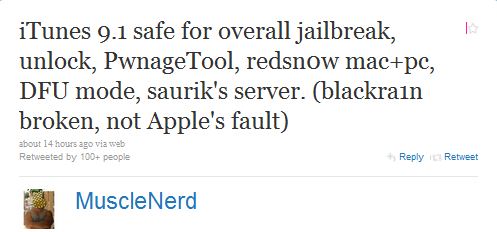
Redsn0w reportedly works fine with the new iTunes 9.1. MuscleNerd twitted:
Geohot, the famous iPhone hacker and the creator of different jailbreak and unlock utilities (purplera1n, blackra1n and blacksn0w), is now working on a new jailbreak utility. It will support untethered jailbreak for all devices with the latest bootrom and the latest firmware. This includes iPhone 3GS and iPod Touch 3G.
Here is what Geohot writes in his blog:
The jailbreak is all software based, and is as simple to use as blackra1n. It is completely untethered, works on all current tethered models(ipt2, 3gs, ipt3), and will probably work on iPad too.
Don’t ask about a release date. You won’t make it happen any sooner.
It is still unclear if he used one of the recent iPhone Safari hacks to gain control of the device or if this is something else.
Here is a teaser video:

Recently MuscleNerd, the member of DevTeam, reported the presence of an interesting security bug in Safari for the iPhone. It will probably allow a quick remote jailbreak of iPhone or iPod Touch simply by connecting the device to an external website created for this purpose.
The bug was discovered by two hackers Ralph Phillip and Vincenzo Iozzo, who won the prize of $15 000 during CanSecWest. Their initial idea was to use a web portal to do the exploit of the SMS database and retrieve it’s content.

iH8sn0w has just released a new version of Sn0wbreeze, the Windows tool that allows you to jailbreak Firmware 3.1.3. This is a small update that fixes a problem that occurs only on 64bit operating system.
You can download the new sn0wbreeze 1.5.2 .
We still recommend to use DevTeam utilities – RedSn0w (Windows and MAC OS) and PwnageTool (MAC OS only).