Download | Jailbreak iPhone, iPod Touch, iPad - Part 18 Skip to content

Jailbreak iPhone, iPod Touch, iPad

новости про джейлбрейк iPhone, iPod Touch и iPad

Archive

Tag: download

pdf exploit Howto secure iPhone iOS: PDF exploit fix

There is a big a security hole in iPhone iOS. The device is insecure in a big and obvious way. You should be extremely careful of what sites you visit.

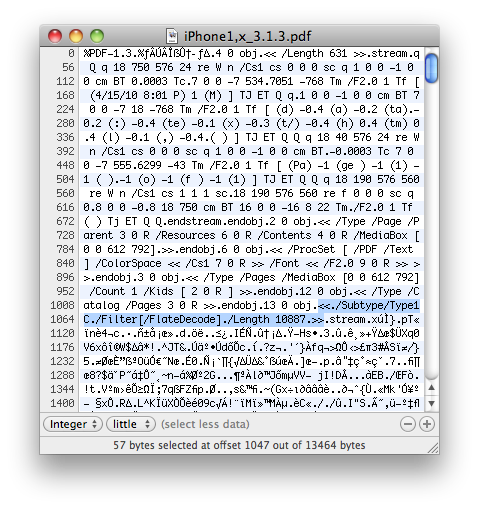
The FlateDecode vulnerability can be used when a PDF File is embedded within a Web page. Basically Safari tries to parse the PDF. And when it does it executes some code. Hackers can use this exploit to read and write iPhone data, get your contacts, sms, even delete something. So they can get all kinds to access your personal information stored on your iOS device.

Apple will fix it some day. Until then you need to take care of your iPhone security. There is a fix for that. It is available via Cydia for jailbroken devices. So you need to jailbreak in order to secure (funny isn’t it?).
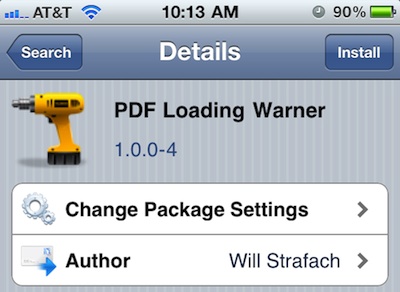
pdfloadingwarner Howto secure iPhone iOS: PDF exploit fix

Will Strafach has released the fix as a Cydia-based package called “PDF Loading Warner.” Simply download and install the package. Every time Mobile Safari attempts to download and parse a PDF you will get the following message:
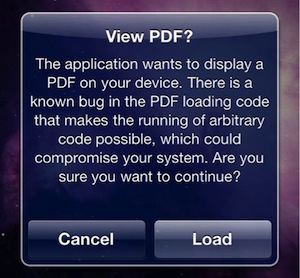
500x pdf dialog Howto secure iPhone iOS: PDF exploit fix

Now you can control, where to accept PDF (as not all of them are made by hackers) and where to select cancel.
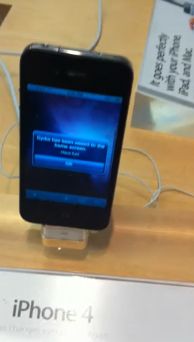

jailbreak appstore1 Jailbreaking the iPhone 4 at the Apple Store video

Jailbreaking an iPhone 4 is easy. Jailbreaking at an Apple retail store is fun. One of the users did that and captured everything on video. Take a look at the video:

FaceTime feature gives users the possibility to make  voice calls. Apple restricted this feature to Wi-Fi only. Today it became possible to use it over 3G!

facetime 3g 235x400 iPhone 4 FaceTime video call over 3G is now possible

Setup Instructions:

  1. Jailbreak your iPhone 4 via www.jailbreakme.com.
  2. Download and upgrade to the latest Cydia package.
  3. Open Cydia, Go to Manage then Sources.
  4. Click Sources, Edit then add: http://apt.modmyi.com
  5. Search for “My3G” — download, and install it. It costs $2.79. My3G makes Apps believe that they are on WiFi instead of 3G.
  6. Go through the Rock setup process with a username and password. Open My3G and leave all settings on the default.
  7. FaceTime should now work over 3G! — Make sure to “Forget” the WiFi network you are on (via iOS settings) if you want to test it.

We haven’t seen any difference between the 3G FaceTime call and a WiFi FaceTime call. The quality is very good.

Here’s a video demo:

redsn0w 095b5 5 374x400 How to jailbreak and unlock iPhone 3G with firmware iOS 4.0.1

There is no official jailbreak utility for iOS 4.0.1. However you can still jailbreak and unlock iPhone 3G. Just do the following:

  • Download the latest RedSn0w 0.9.5-b5 in our utilities page here.
  • Download firmware images for iOS 4.0 here.
  • Run RedSn0w and point it at the 4.0 IPSW. (Yes – point it at the 4.0 IPSW even though you’re at 4.0.1). This will also hacktivate your iPhone3G at 4.0.1 if you haven’t already been activated by iTunes.
  • Install ultrasn0w in Cydia (add repository http://repo666.ultrasn0w.com) if you need a carrier unlock (and in the USA, remember to turn off 3G mode in Settings→General→Network).

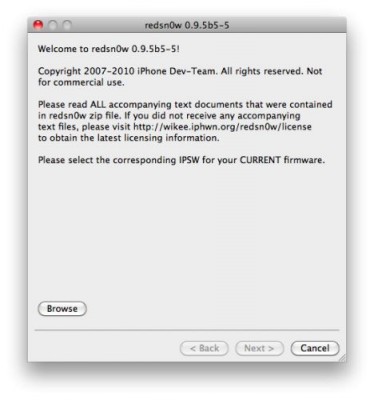
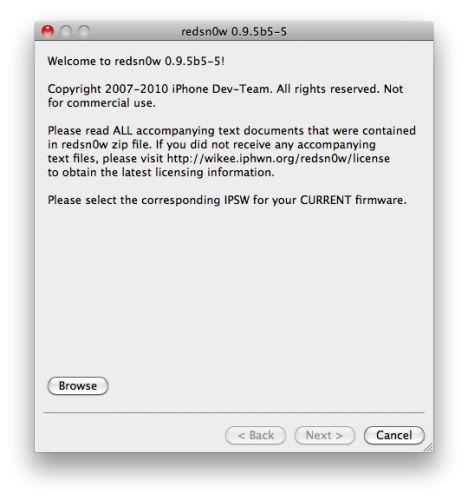
redsn0w 095b5 5 RedSn0w 0.9.5b5 5: iOS 4 jailbreak updated

DevTeam updated iOS 4 jailbreak utility redsn0w to version 0.9.5b5-5. That should fix any APN or MMS issues that users were seeing. It’s safe to re-run it on an already jailbroken iPhone without restoring. Just deselect “Install Cydia” if you do that.

Supported devices are still only iPhone3G and iPod Touch 2G (not MC)

You can download the latest version here.

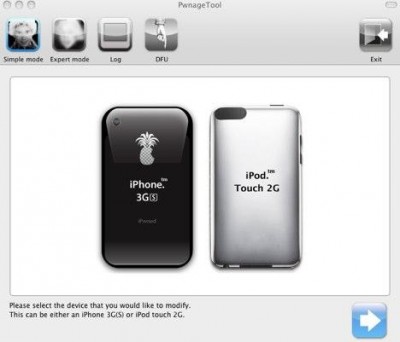
pwnagetool 4 01 400x342 PwnageTool 4.01: iOS 4 jailbreak for iPhone 3GS, iPhone 3G and iPod Touch 2G

DevTeam released update to their PwnageTool jailbreak utility. New version 4.01 supports iOS 4 jailbreak for iPhone 3GS (old bootrom), iPhone 3G and iPod Touch 2G (non-MC).

You can download the latest version here.

We recommend to read DevTeam instructions here before you start.

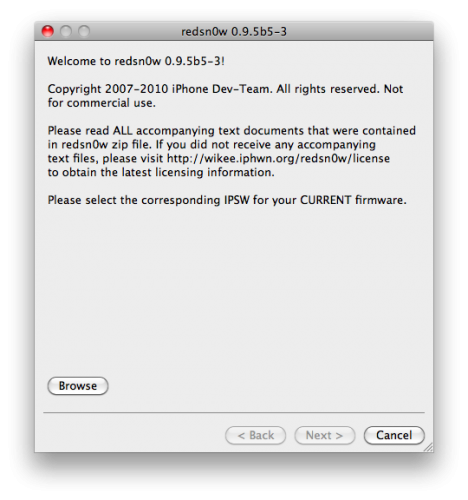
redsn0w ios4 RedSn0w 0.9.5b5 3: iOS 4 jailbreak for iPhone 3G and iPod Touch 2G

DevTeam successfully jailbreaked new iOS 4. They updated jailbreak utility redsn0w to version 0.9.5b5-3. Supported devices are iPhone3G and iPod Touch 2G (not MC). New redsn0w is also able to hacktivate iOS 4.0 for iPhone3G.

You can download redsn0w 0.9.5b5-3 here:

For latest version we recommend to use our utilities page.

redsn0w 095b5 3 RedSn0w 0.9.5b5 3: iOS 4 jailbreak for iPhone 3G and iPod Touch 2G

redsn0w095b4 306x400 RedSn0w 0.9.5 Beta4 can jailbreak iOS 4.0 GM

Apple recentrly released new version of iPhone OS 4. it is called iOS 4.0 GM. Here is an update from DevTeam about iOS 4 jailbreak:

For those who can legitimately activate to the iPhone3G 4.0GM seed, the “point to previous IPSW” redsn0w trick works and will jailbreak your 4.0GM. The “trick” is to point redsn0w at the 4.0beta4 IPSW instead of 4.0GM (do this after you’ve updated to 4.0GM and activated through the new iTunes 9.2 on your Mac). Since the carrier unlocks aren’t yet supported at 4.0, don’t do this if you use yellowsn0w/ultrasn0w/blacksn0w. Many JB apps are still pretty buggy in 4.0, so again this is mostly useful only for developers of those JB apps.

Note: If you’re experiencing MobileSafari crashes, double check that you’re running the version at the bottom of this page.

For those without legit iPhone3G 4.0GM seed access, please wait until the full public 4.0 release for updates to the jailbreak tools.

You can download redsn0w 0.9.5.b4 here.

redsn0w095b4 306x400 Redsnow 0.9.5.b4 for iPhone Os 4.0 Beta 4 Released

Last week Apple has released its iPhone Os 4.0 beta 4 and redsn0w is finally updated to support this as well as beta 1. New version of jailbreak is 0.9.5.b4 and it can be applied on iPhone 3G only(!).

Redsn0w 0.9.5.b4 is targeted at developers who make jailbroken apps, and will not work if you are already using blacksn0w, ultrasn0w or yellowsn0w.

iPhone Dev-Team warns:

“You should stay clear of this beta software if you rely on a carrier unlock.”

To use the jailbreak, follow the guide below:

  1. Download redsn0w 0.9.5.b4 here. (Only Mac OS X version since app are developed on this OS).
  2. Make sure you have already activated your iPhone 3G with iTunes and your own developer ID.
  3. Launch the jailbreak.
  4. Select your stock iPhone1,2_4.0_8A274b_Restore.ipsw (beta4) or iPhone1,2_4.0_8A230m_Restore.ipsw (beta1) file that you used to update your firmware.
  5. Choose “Install Cydia” and then click “Next”. Use DFU mode to install the redsn0w.
  6. When your iPhone 3G comes back up, you will notice Cydia has a blank white icon. It also has no sources so you should go to the Sources panel and add this repo: http://apt.saurik.com/cydia-3.7 (make sure you are connected to the Internet before). When Cydia restarts, you should see its real logo now, and the standard sources should be ready to use.

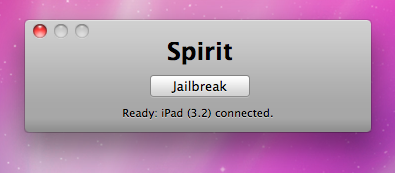
spirit jailbreak How To Recover Deleted Photos After Spirit Jailbreak

The first release of Spirit had a bug that accidently could delete all of your photos from the device that was jailbroken. If you have a backup which you made before jailbreaking your iPhone/iPod Touch/iPad, here is a quick guide how to recover deleted photos.

1. Open Cydia and search for “OpenSSH” and then install it. Reboot your device.

OpenSSHoniPad 300x400 How To Recover Deleted Photos After Spirit Jailbreak

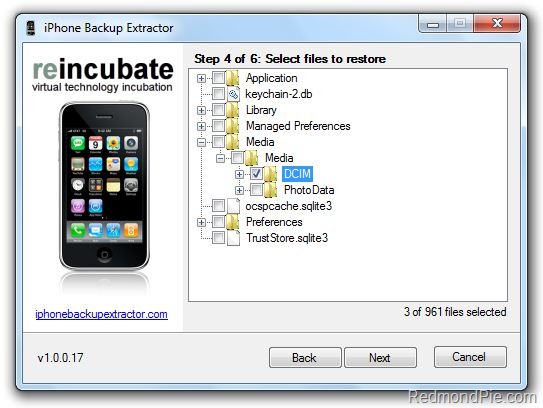
2. Download and then install iPhone Backup Extractor.

3. Run iPhone BackUp Extractor. Select your last backup (that was made before jailbreak)

4. Navigate to Media/Media and select DCIM folder. Click “Next” and program will save the files locally.

iPhoneBackupExtractor1 How To Recover Deleted Photos After Spirit Jailbreak

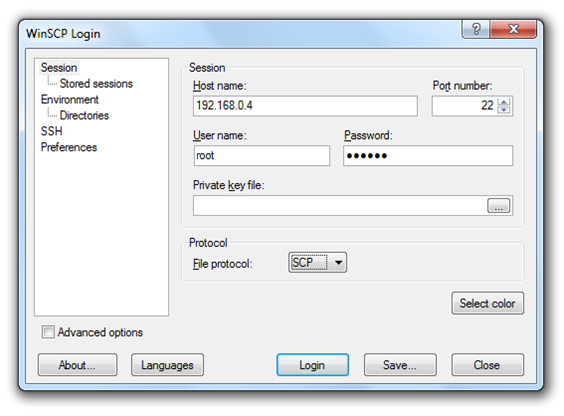
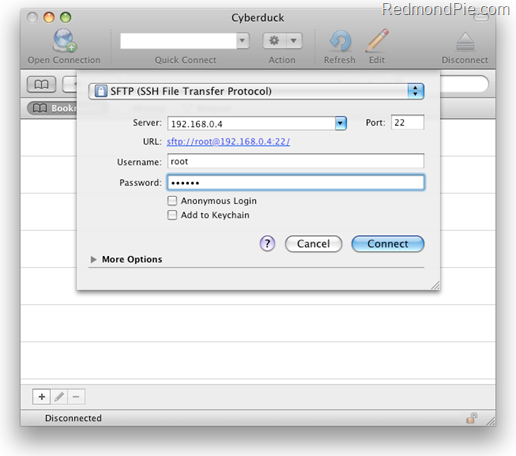
5. Download and then istall WinSCP for Windows or Cyberduck for Mac . Open it and enter the following data to login to your device.

WinSCP for Windows

  • Hostname: The IP address of your device. (Settings –> WiFi –> <Your Network Name>)
  • Protocol: SCP
  • User name: root
  • Password: alpine

WinSCP

Cyberduck for Mac OS X

  • Server: The IP address of your device. (Settings –> WiFi –> <Your Network Name>)
  • Protocol: SFTP
  • Username: root
  • Password: alpine

CyberDuck

6. Go to /User/Media directory and then copy over the DCIM folder.

7. Reboot your device.

After that you’ll have all your backuped photos back.